Topic Explorer
The Topic Explorer makes topics — not articles — the unit of value. Every entity your sources mention, every cluster your site already covers, every gap your audience is searching for: all surfaced as a single browsable, filterable view.
How topics get assembled
When you open the Topic Explorer, the system pulls topics from four places and merges them:
- Entities from your last 100 briefs — extracted by Gemini with Wikidata QIDs where possible.
- Core topics from your site profile — what the profiler identified as your main subject matter.
- Content gaps — topics your audience description suggests they want but the profiler couldn't find on your site.
- GSC queries — if connected, every query you've appeared in search results for is mapped to a topic.
Topic cards and lifecycle states
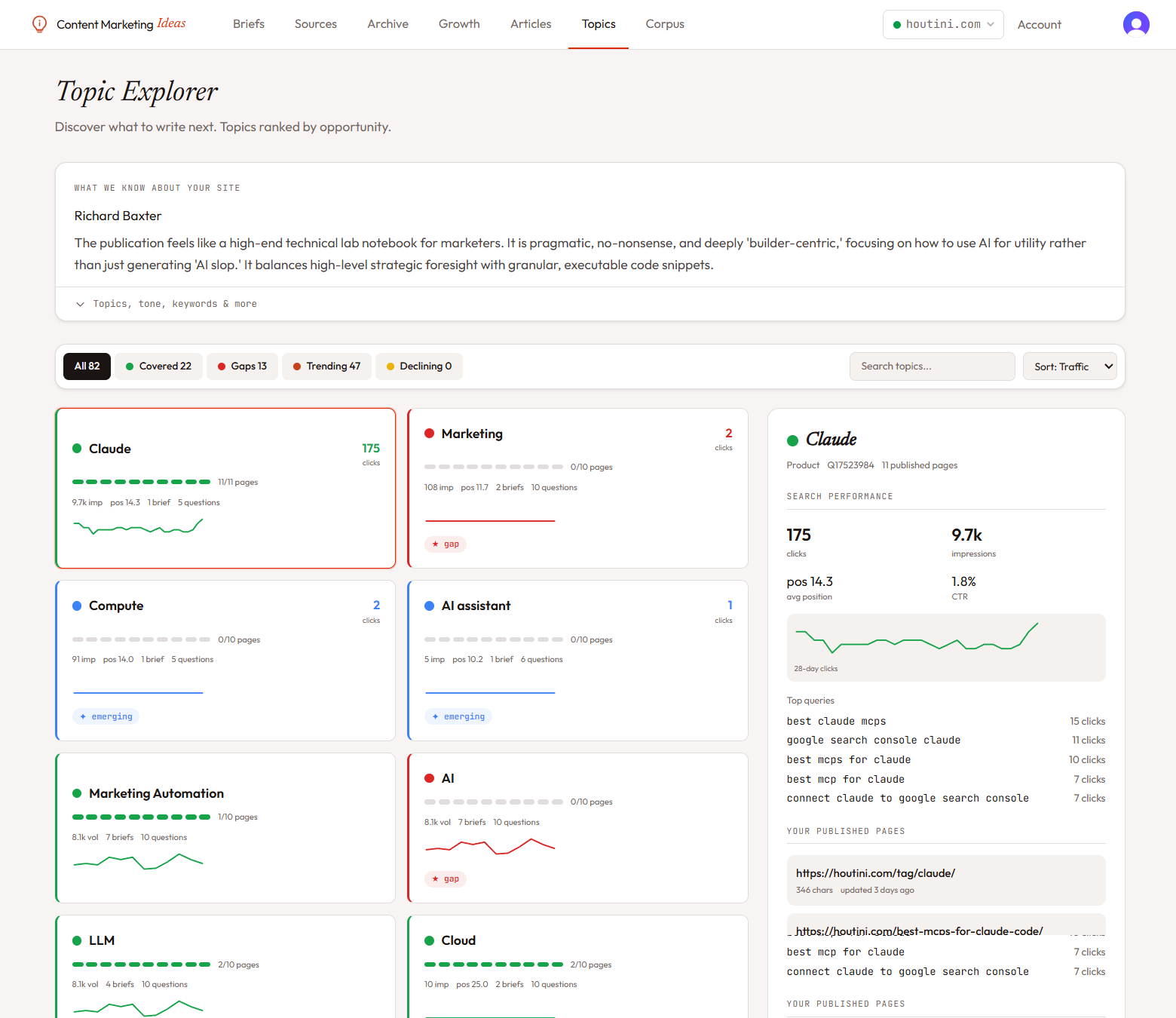
Each topic gets a card on the left side of the page. A coloured dot and badge tell you the lifecycle state:
- Covered — you have published pages on this topic and they're performing.
- Trending — interest is rising, get ahead of it.
- Gap — your audience cares about this and you have nothing published.
- Declining — you have coverage but traffic is slipping. Refresh candidate.
- Emerging — new topic with low volume but rising momentum.
Filtering and sorting
Use the tabs at the top to filter by lifecycle state — All / Covered / Gaps / Trending / Declining. Each tab shows a count so you can see at a glance whether you have a content gap problem or a refresh problem.
Sort options: Traffic (highest GSC clicks first), Volume (highest search volume first), A–Z, or Newest.
Detail panel
Click any topic card and the detail panel on the right populates with:
- Search performance — clicks, impressions, average position, CTR, plus the 28-day sparkline.
- Top queries — the actual GSC queries driving traffic to this topic.
- Published pages — every page on your site that covers this topic, with last-updated dates.
- Briefs — past briefs the system has generated for this topic.
- People Also Ask — questions Google associates with this topic.
- Related topics — Wikidata parent and sibling topics. Useful for finding adjacent angles.
- Competition — how many guides exist, their quality, YouTube coverage.
Site profile card
At the top of the page, the site profile card shows what the system knows about you: editorial voice, audience description, core topics, top ranking keywords from DataForSEO, and the content gaps it has detected. This is the same data that powers brief synthesis and article voice matching.
Clusters
Beyond individual topics, the explorer groups related topics into clusters based on shared entities. A cluster summary shows total clicks, coverage ratio (how many topics in the cluster you've published on), and the constituent topics. Clusters are how you spot when an entire content theme is under-served.
Questions section
At the bottom of the page, every question we've extracted from PAA across all your topics is aggregated into a single list. Each question links back to the brief it came from. This is your FAQ writing backlog.